
Let Claude and Gemini talk to NotebookLM

By AriAnna Swaab and Seth J. Chandler. Ms. Swaab is a 2L student at the University of Houston Law Center and alumna of my Large Language Models for Lawyers course.
As I've discussed many times on this blog, Google Gemini, Claude and NotebookLM are all great AI tools for legal education when used on a standalone basis. What we want to discuss here, however, is how you can easily produce even better educational materials by letting Gemini interact with NotebookLM and by letting Claude Cowork control NotebookLM. This latter method takes some additional setup, but turns NotebookLM into a programmable factory for the production of high quality learning materials.
Gemini
Querying NotebookLM Sources from Gemini
Gemini can now interrogate the sources in a NotebookLM notebook much the same way you would interrogate those sources inside NotebookLM itself. Consider a notebook containing sources on the 2005 Supreme Court decision in Gonzales v. Raich — the case in which the Court upheld Congress's power under the Commerce Clause to regulate homegrown marijuana even where a state had legalized it for certain purposes. Inside NotebookLM, you could ask for a report on why the Raich respondents might have believed California's legalization of homegrown marijuana for medical use should limit Congress's constitutional powers. With the new integration, you can obtain essentially the same report by querying the notebook from Gemini directly, without reopening NotebookLM at all.
Better still, Gemini lets you create products from your notebook that NotebookLM alone cannot generate. The key is Gemini's distinctive capabilities — most prominently Canvas, its interactive workspace for documents and code.
Using Canvas to Build on NotebookLM Notebooks
Canvas lets you turn a NotebookLM notebook into an interactive website or other dynamic output. To get started, open Gemini and locate "Notebooks" in the left side panel (you will need a current version of Gemini with the notebooks feature enabled). From there, you can connect to a NotebookLM notebook you previously created — for instance, the Gonzales v. Raich notebook we described above.
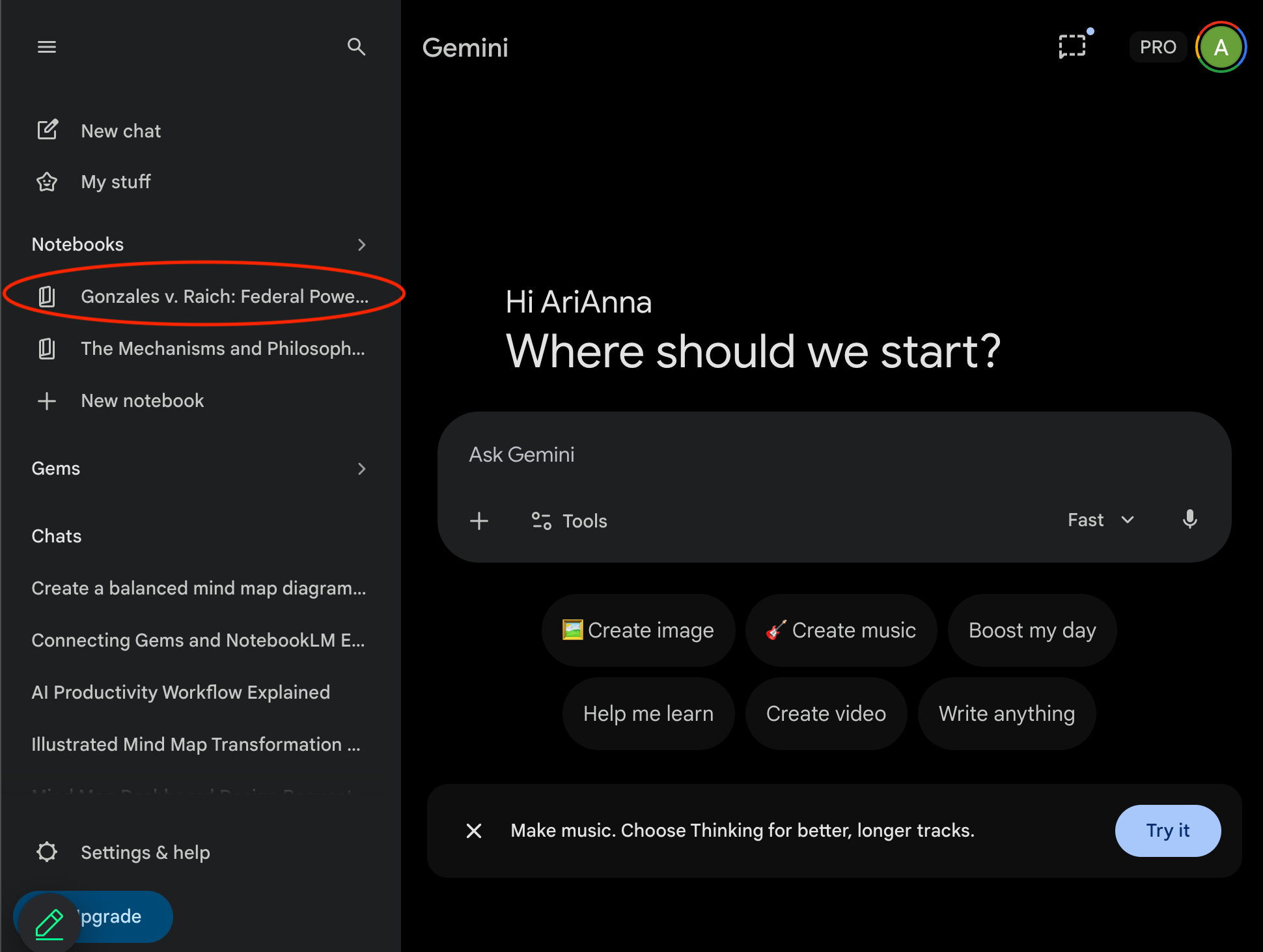
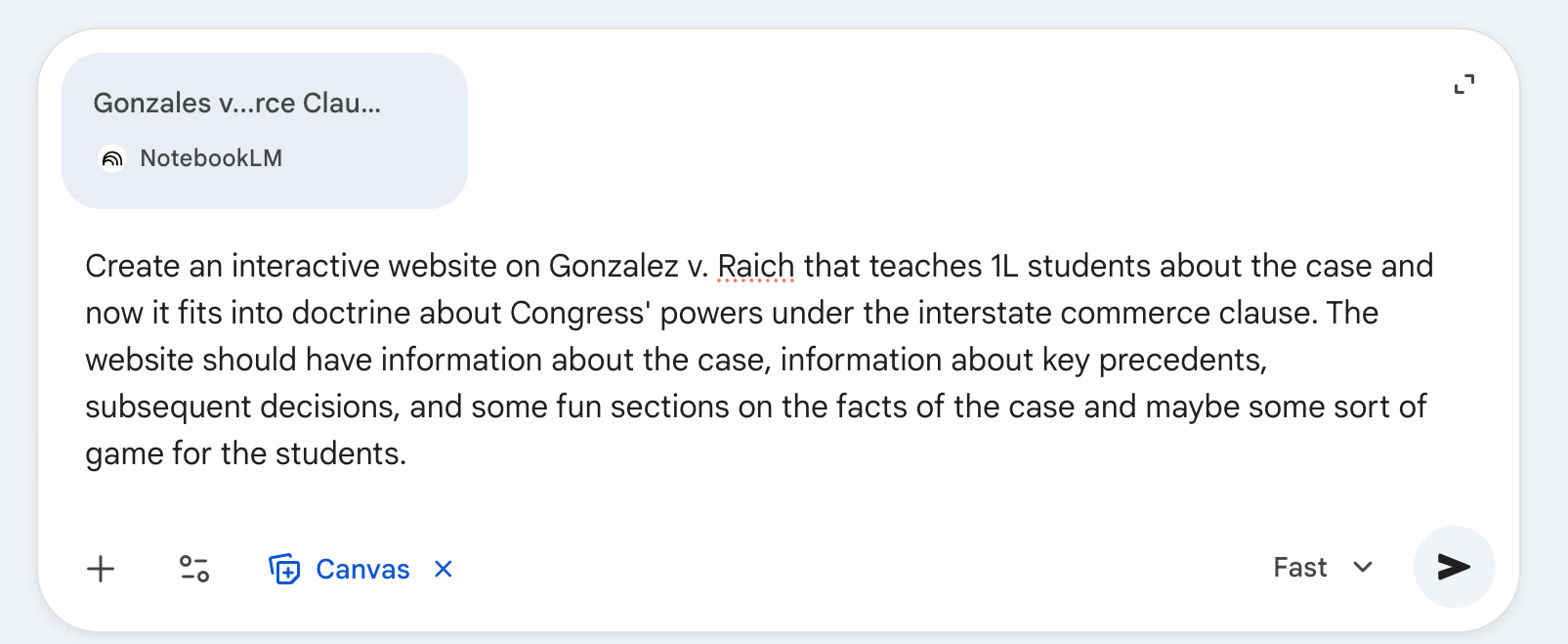
Moreover, by sharing the notebook you can let anyone with appropriate permissions generate materials from its contents. Here, for example, one of us (the author who dislikes dark mode) generates an interactive website on Gonzales v. Raich from the notebook that other author created.
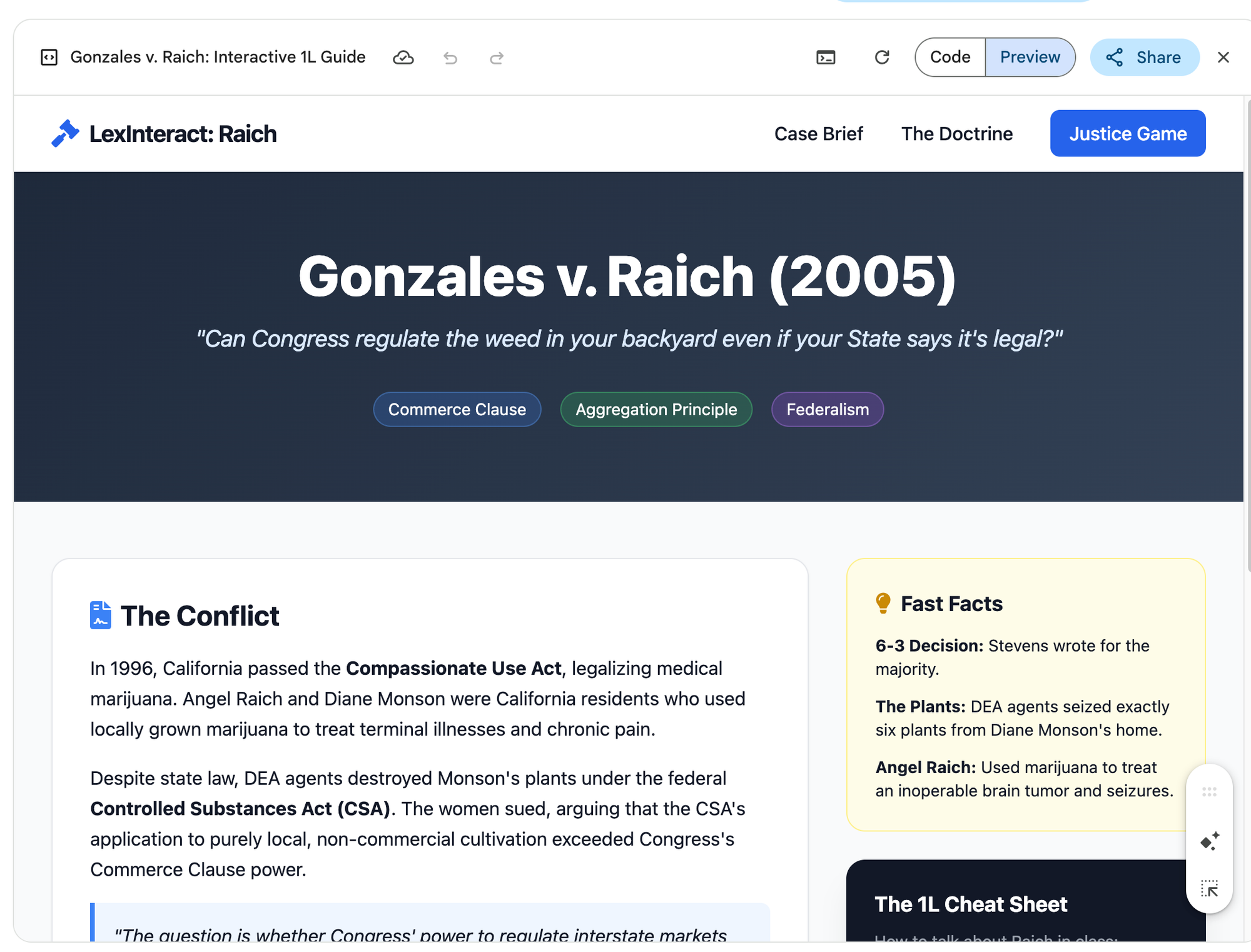
Here's a screen capture previewing the website.
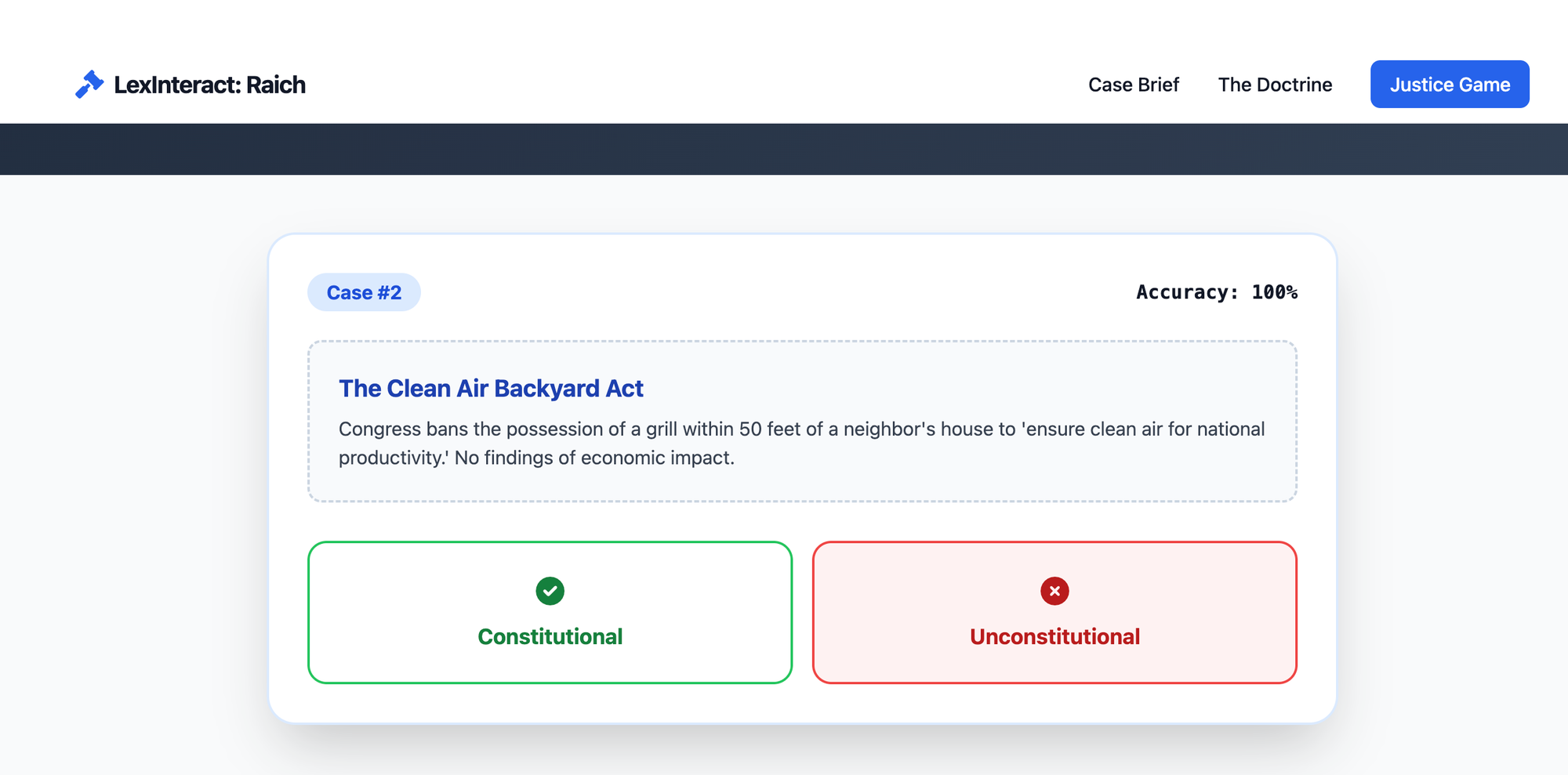
With a single click of the "Share" button, we can make the website available to the world at large. Here's its "Justice Game" in action sitting on that public website. (Hope you remember United States v. Lopez!)
Or you can use Canvas to create an essay that you can edit with directives such as "change the length" or "change the reading level" rather than precise line edits of the sort that predominated before the advent of AI.
You can likewise use Gemini to create a "Guided Learning" session about the material in the NotebookLM. You could, for example, tell Gemini to create a Guided Learning session that would let you reenact the role of the lawyers for the United States (Gonzales) and for Raich and rehearse the arguments they would have had to make to the court.
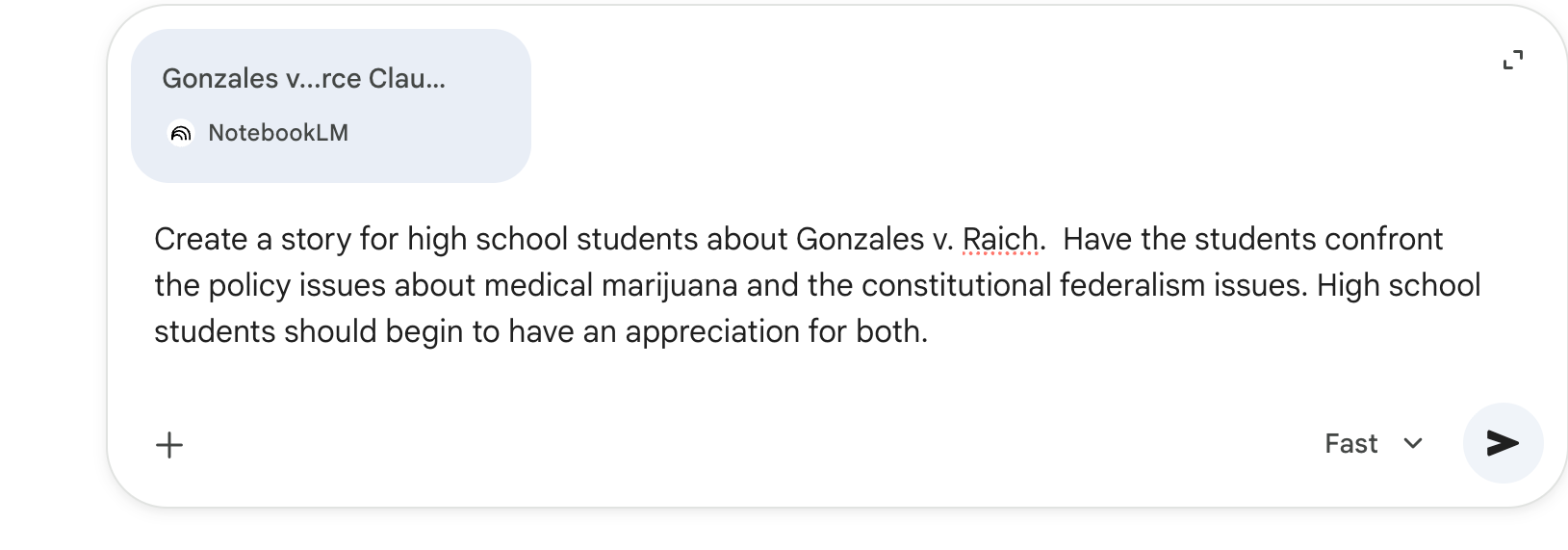
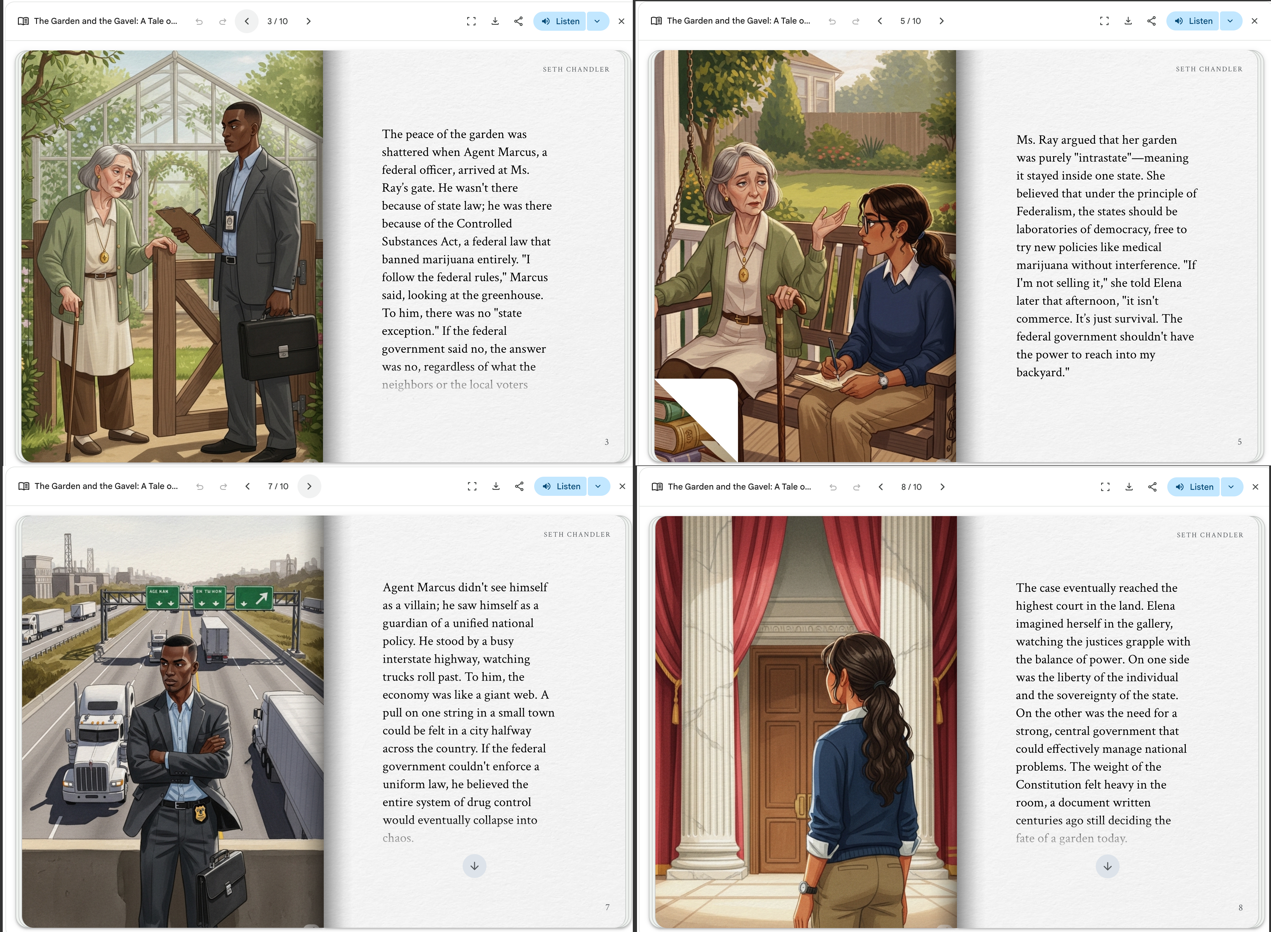
Gemini coupled with NotebookLM also lets you have fun. Here we hook the two up and use Gemini's "Storybook Gem" to create an illustrated story for high school students about the case.
Here's a collage of pages from the result.
There are more sophisticated projects you can generate once you have the Gemini-NotebookLM connection mastered. You can incorporate a NotebookLM document as part of a Gemini "Gem." Suppose, for example, you have created a NotebookLM document on legal writing. You've populated it with leading sources on effective legal writing and used NotebookLM to then produce materials on typical writing assignments such as how to draft or respond to a summary judgment motion or how to draft or respond to a contract. You can now make the contents of that NotebookLM document available to a Gem to which you give specific instructions on how to write a particular document.
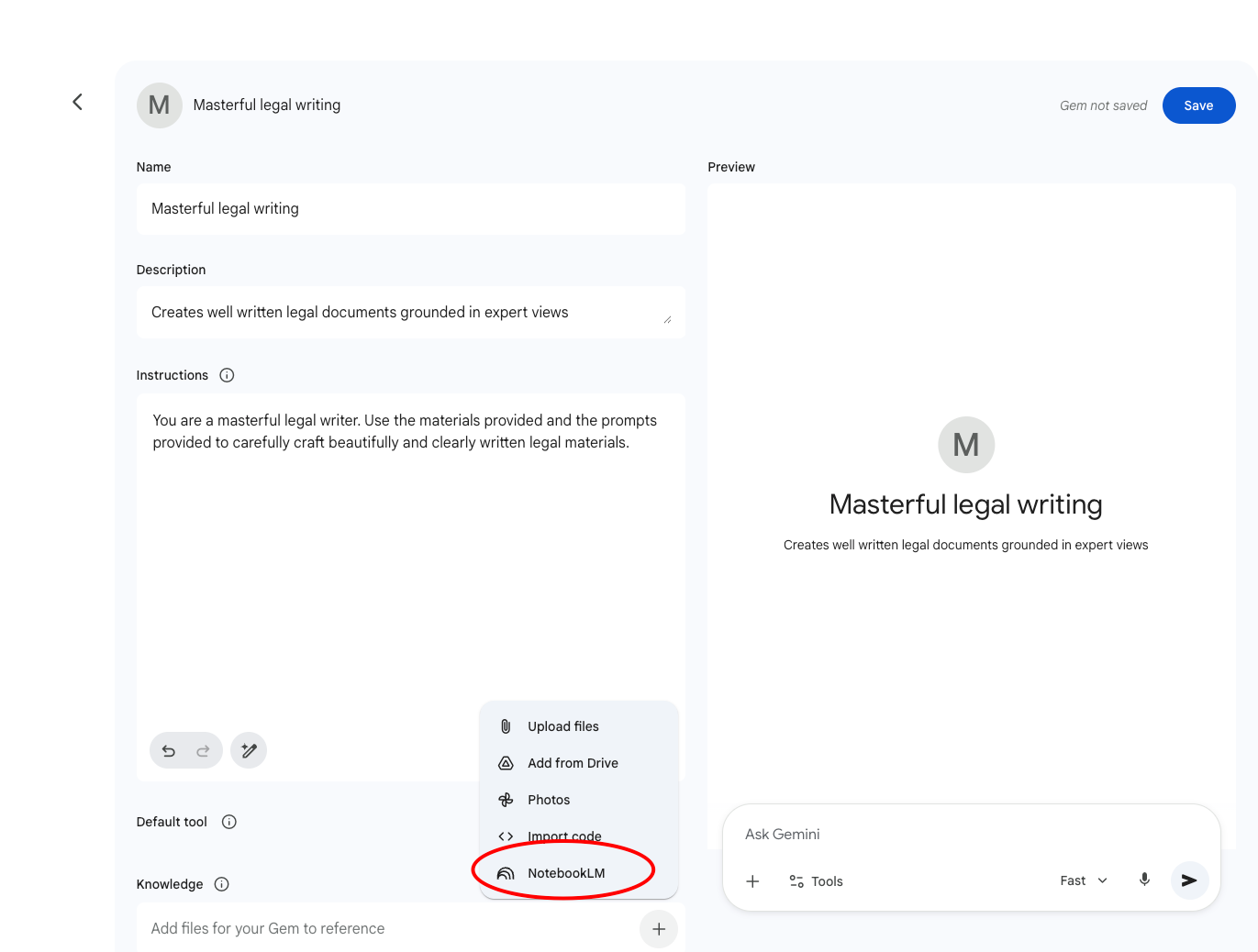
And because a Gem can connect to multiple NotebookLM documents, you can supplement its newly found knowledge with material on a substantive topic of interest. Here, for example, I create a specialized Gem that not only attaches to the Legal Writing notebook but also one on presidential war powers.
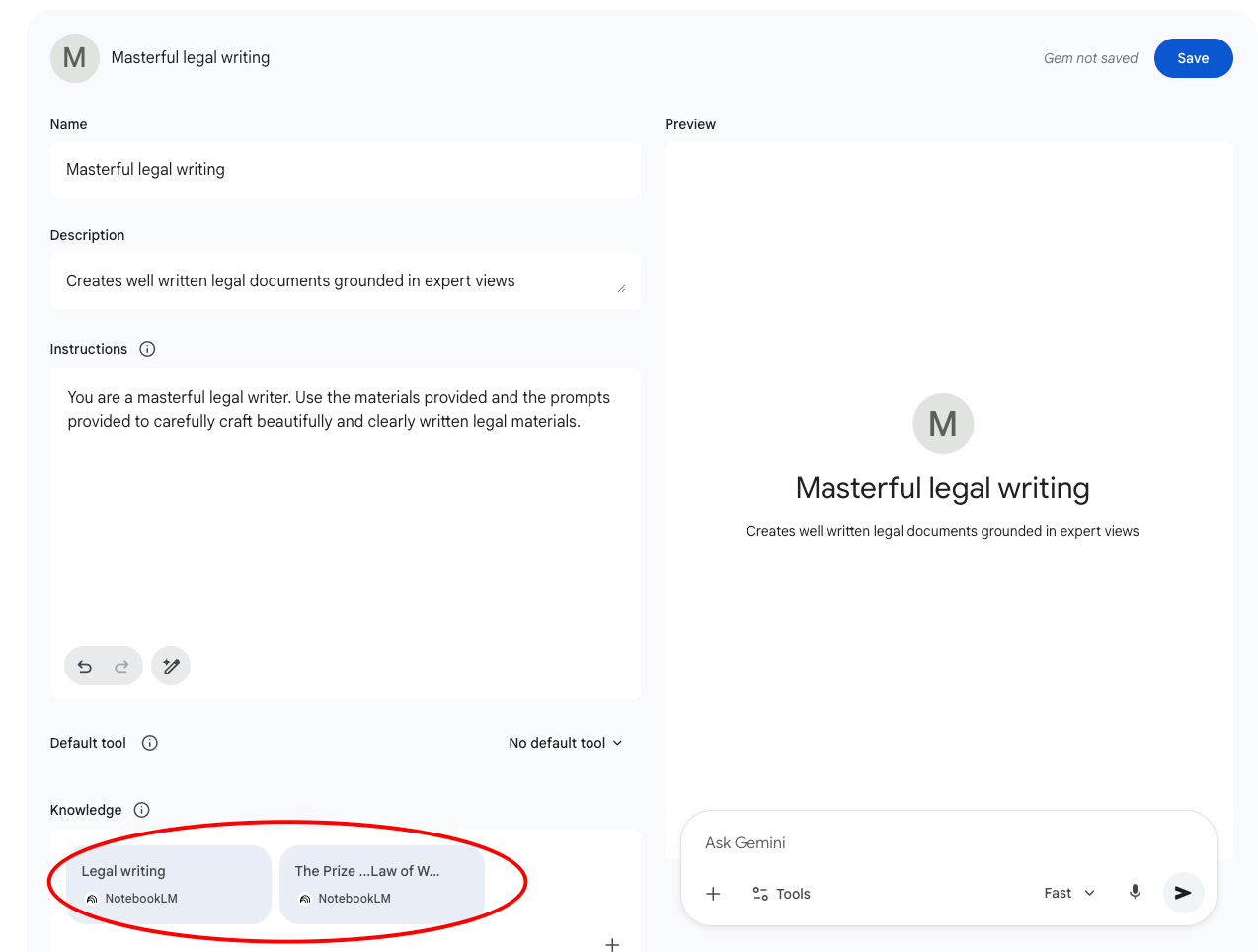
With this Gem, I can now put in prompts such as this:
Use recent events in the war against Iran to draft a 2500 word essay on the efficacy (or not) of present constraints on presidential war powers. Use the Legal Writing notebook and the Prize Cases notebook to help generate elegant prose that is grounded in recognized legal sources.
Would this be possible without a Gemini-NotebookLM connection? Probably. But the connection makes it convenient and produces passable results. I would note, however, that Gemini's writing abilities are currently far short of Claude's. The prose it produced in response to this prompt was, notwithstanding access to material on good legal writing, replete with the sort of AI tropes that many have rightly criticized. Still, the concept of grounding Gemini Gems in potentially multiple NotebookLM notebooks remains a sound one even if this particular implementation was not an unmitigated success.
Enhancing NotebookLM artifacts
Gemini also lets you enhance various artifacts produced in NotebookLM even when you can't generate those artifacts from within Gemini itself or directly port them over. One example is "Mind Maps." NotebookLM can easily produce "mind maps" that represent a hierarchical faceting of its materials. Here's a Mind Map generated from within NotebookLM using the same example notebook on Gonzales v. Raich.
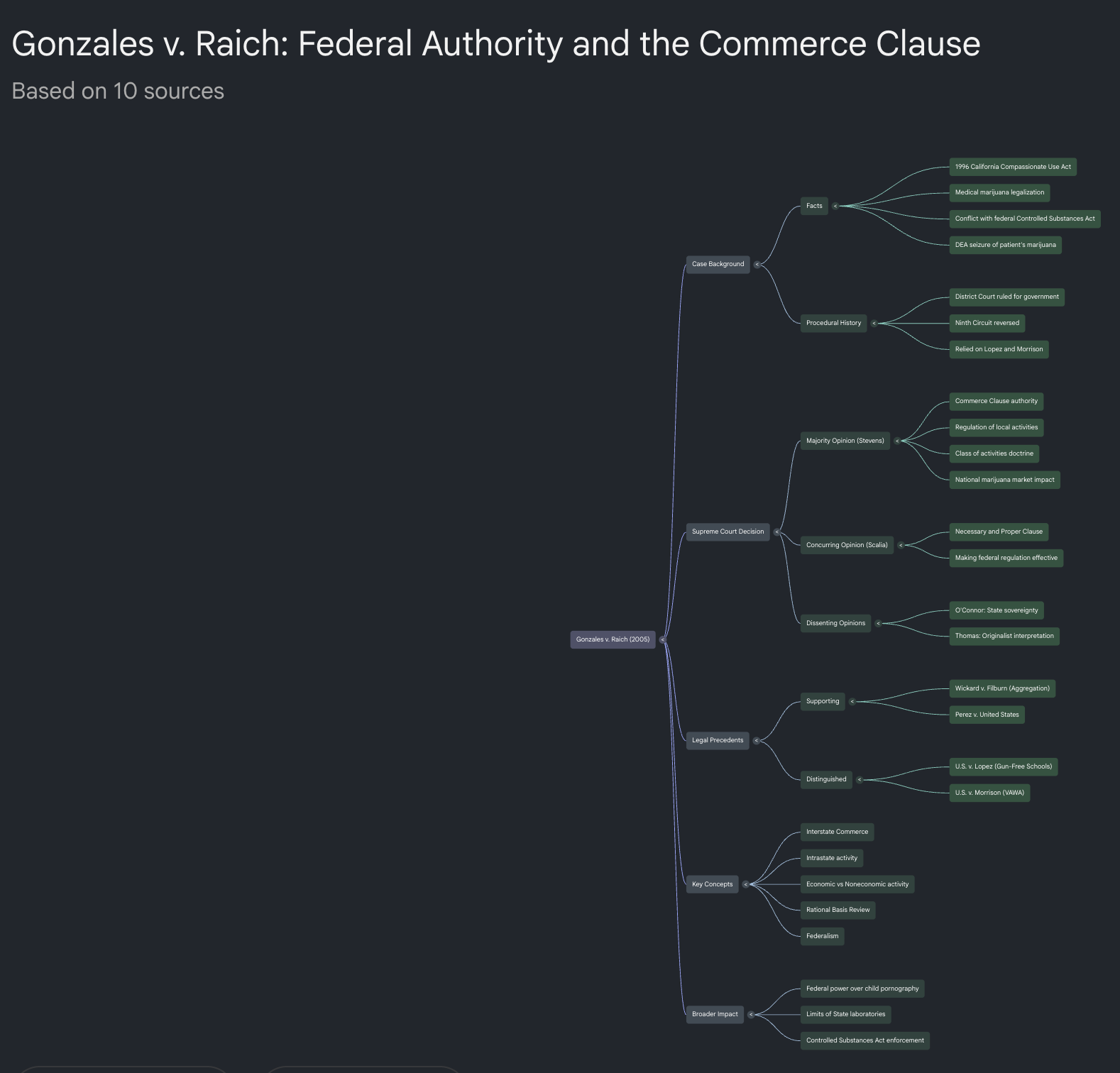
The output from NotebookLM is functional but not something a student would brag about or that a professor would show off in class. But, as suggested in this YouTube video from the AI Tech and Education Channel, the Mind Map produced by NotebookLM can serve as a foundation for the more powerful image generation capabilities of Gemini and possibly other multimodal large language models. You just save the NotebookLM artifact to file and then import it in to Gemini.
Here, for example, is what we get when we feed Gemini even a lazy prompt in conjunction with the basic Mind Map visualization provided by NotebookLM: "Create a balanced mind map diagram with the main concept centred, primary branches evenly distributed, and sub-nodes grouped within each branch. Use a dark background, one colour per branch, thin connectors, and branch-specific flat icons. Format each node with a short bold label and a brief supporting line. Output in 16:9, presentation-quality style with consistent spacing and visual density throughout."
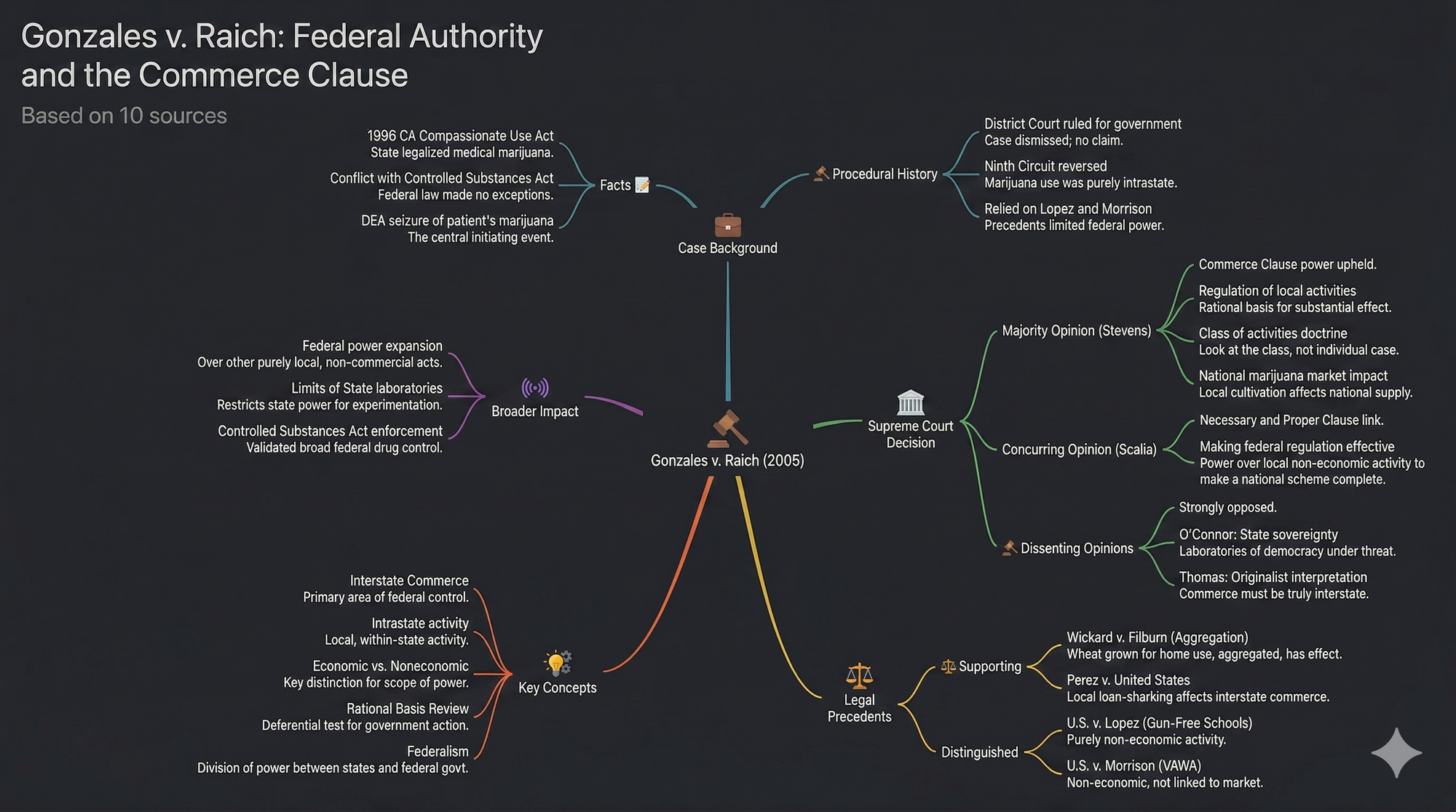
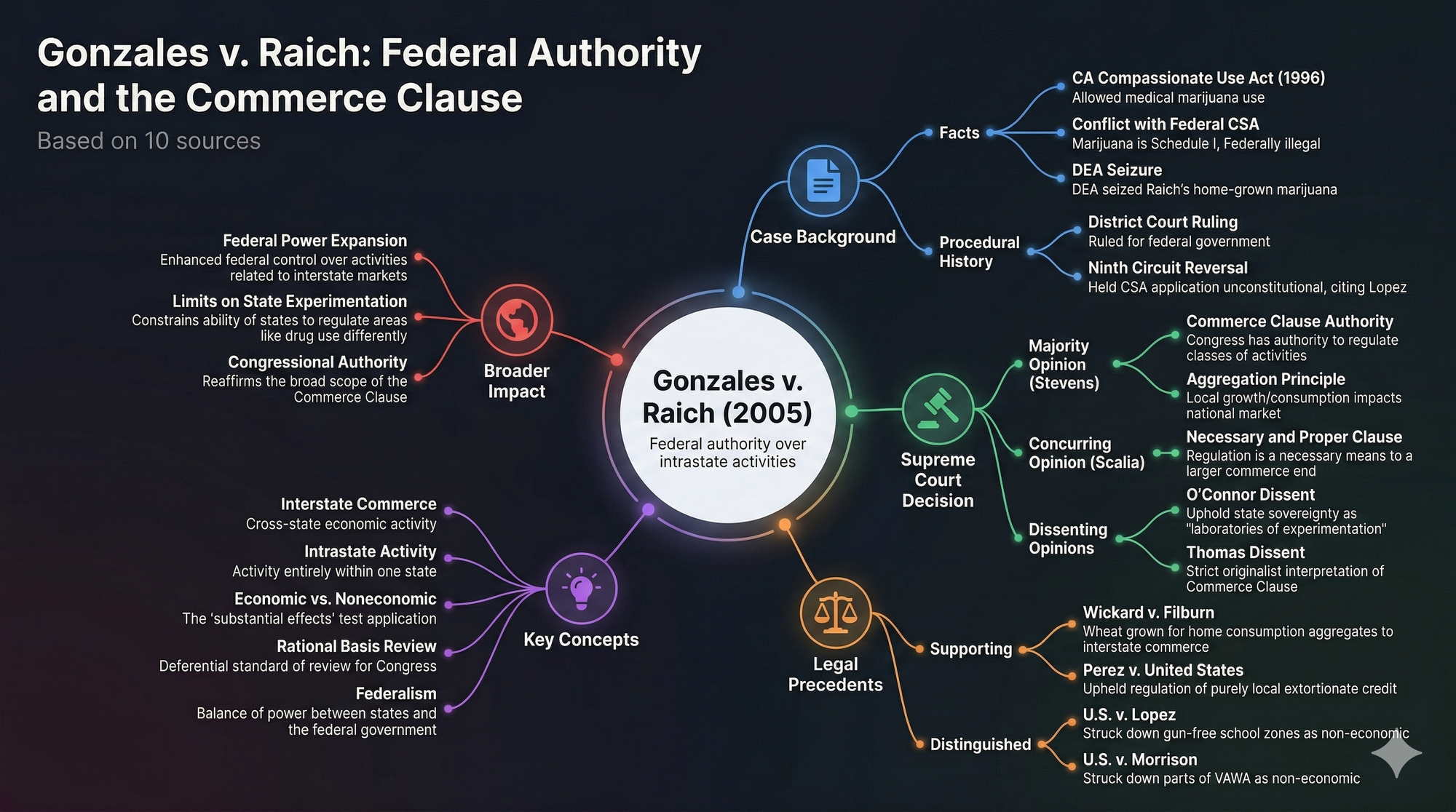
Not bad, but with a little effort we can do even better. Here's a more complex prompt that is founded on ideas contained in the YouTube video cited above but adapted with the help of multimodal AI for the specific legal case involved.
Here's the result, something that students and professors alike might find pedagogically useful and aesthetically pleasing.
Limitations
There are, however, significant limitations right now on fully connecting Gemini and NotebookLM. First, standalone NotebookLM has a "discovery mode." You just tell NotebookLM, "Find sources relevant to how presidential administrations from Obama to the present day have enforced the Controlled Substance Act with respect to marijuana in states that have legalized it for at least some purposes." NotebookLM uses Google to scour the internet and produces a list of sources for you to evaluate and, if approved, incorporate into the notebook. The Gemini-to-NotebookLM connection presently has no such capability. Instead, you generate a list of Web URLs or YouTube videos or Google Drive documents the "old fashioned way" and then ask NotebookLM to incorporate them. This works, but it requires multiple steps that "discovery mode" avoids. Second, you can't use Gemini to "drive" NotebookLM. Within NotebookLM, for example, you can request production of various artifacts such as an audio debate or a cinematic video or flash cards. You can't tell Gemini, however, to "use the NotebookLM capabilities to generate a debate on whether Gonzales v. Raich can be reconciled with cases such as United States v. Lopez."
Claude
To use NotebookLM as more of a computer-controlled factory, you currently need Claude. Here's how, for example, with a single prompt we used Claude to build a public website on Netlify using the foundation provided by a NotebookLM notebook that was, as discussed below, itself constructed by Claude.
Download all studio artifacts from the NotebookLM notebook titled "Gonzales v. Raich — Commerce Clause." Then build a website that includes: the downloaded artifacts (audio overview, flashcards, quiz, and study guide); a summary of the case and holding; an explanation of the aggregate effects test as the doctrinal centerpiece; a summary of each opinion — Stevens majority, Scalia concurrence, O'Connor dissent, and Thomas dissent — covering the reasoning and key arguments; a timeline of Commerce Clause doctrine from Gibbons v. Ogden to Raich; a comparison of Lopez and Morrison's limits against Raich's expansion; and a list of all 30 source cases with one-sentence descriptions. Deploy the completed website as a new Netlify site using the Netlify connector. Return the live URL when done.
Here's the result, which you can see for yourself at https://gonzales-v-raich.netlify.app/. You can build more sophisticated websites this way than with the Canvas method described in the Gemini section of this blog entry.
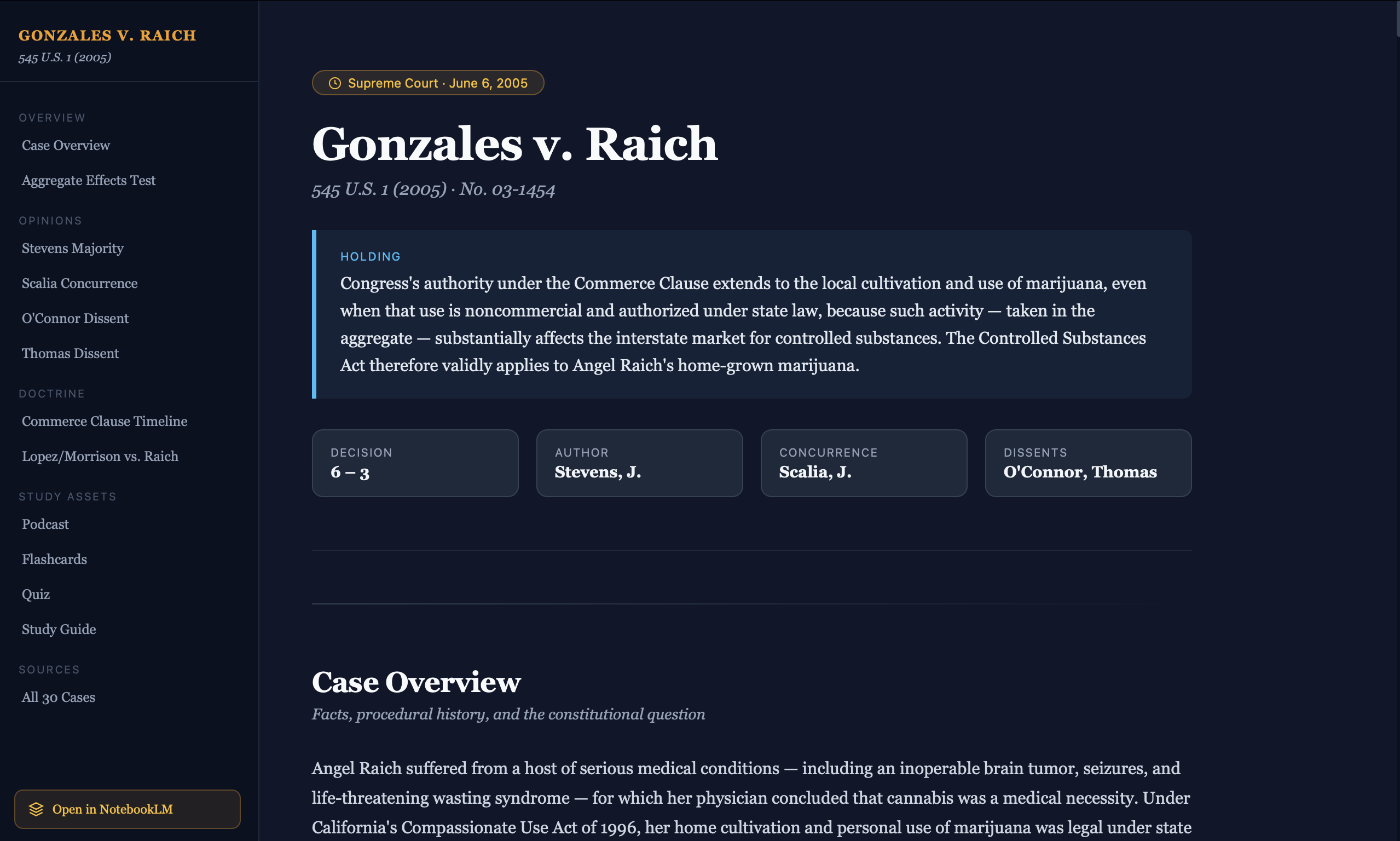
Don't like the color scheme? We can ask Claude to fix it.
Old people don't like dark mode. Make this a cheerful, lighter website. Redeploy.
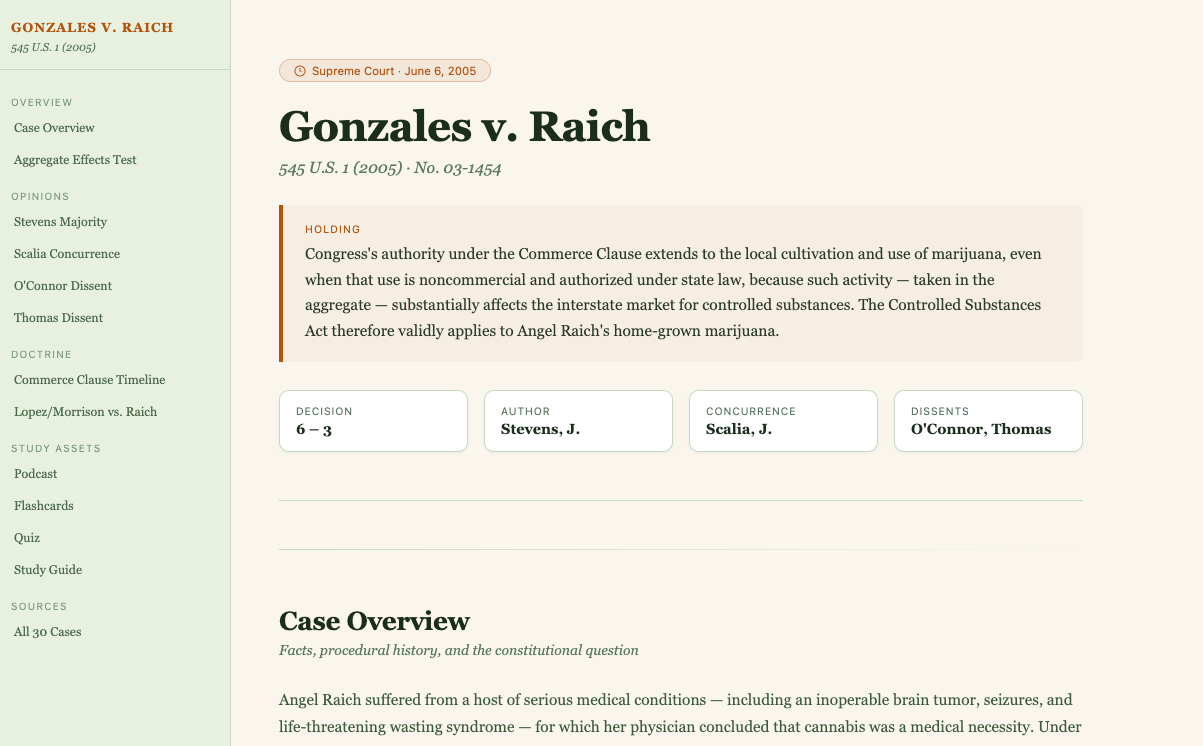
We can also use the most advanced Claude models to develop sophisticated products based on the materials stored inside NotebookLM.
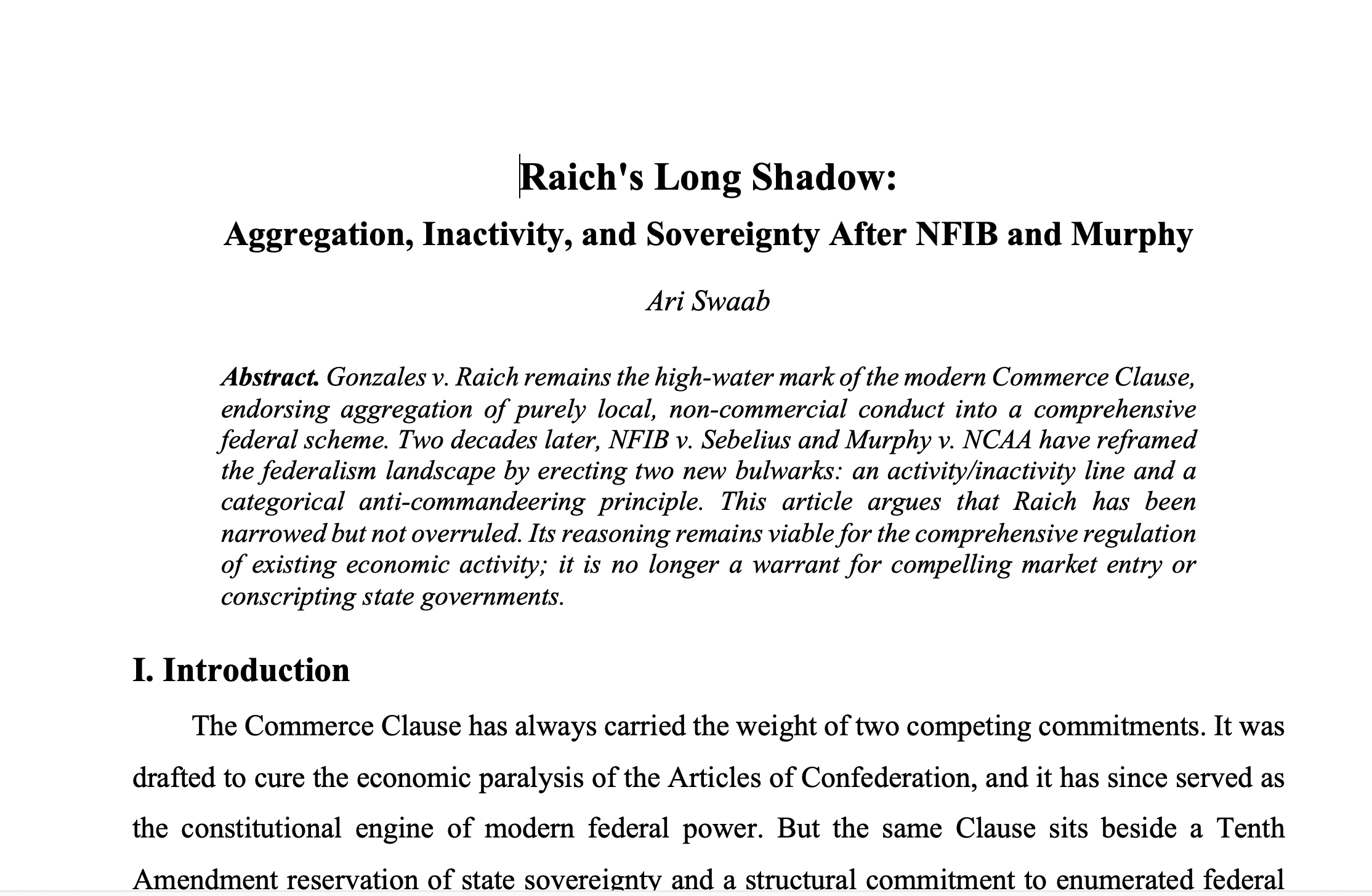
Use the sources and artifacts from the NotebookLM notebook "Gonzales v. Raich — Commerce Clause" to produce a 2000 word law review article draft analyzing how the Court's expansive interpretation of the Commerce Clause in Gonzales v. Raich compares to its more limited view in recent cases like NFIB v. Sebelius and Murphy v. NCAA. Does Raich's broad federal power over local economic activity still hold, or has the Court shifted to a more restrictive approach to the Commerce Clause? Discuss whether Raich's reasoning is still viable in light of these more recent precedents.
Here's some sample output from this prompt.
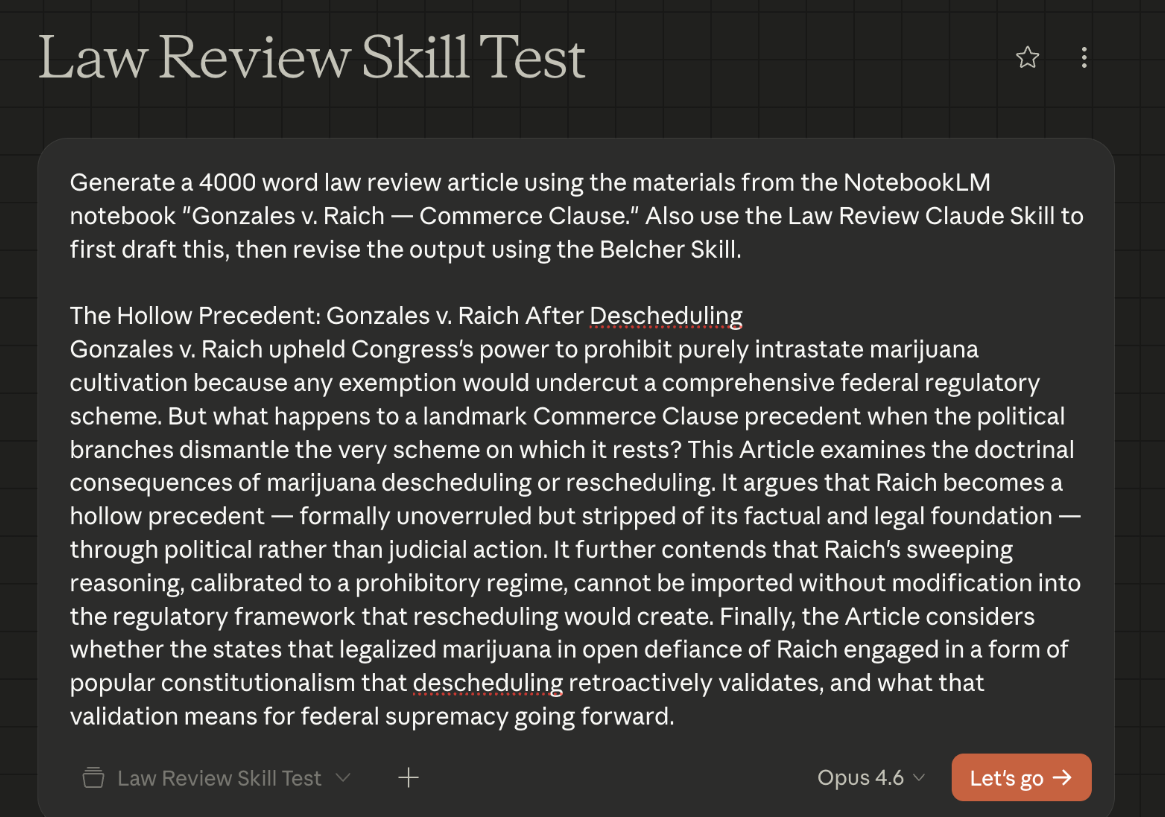
But we can do even better by harnessing Claude's extra powers. Here, as before, we ask it to use create a draft law review article involving Raich and to rely on the NotebookLM notebook for grounding but also ask it to use two Claude skills, one drafted by each blog author. We use a law review article drafting skill created by Ms. Swaab and the Belcher-proofing skill authored by Professor Chandler to reduce the incidence of bad AI writing.
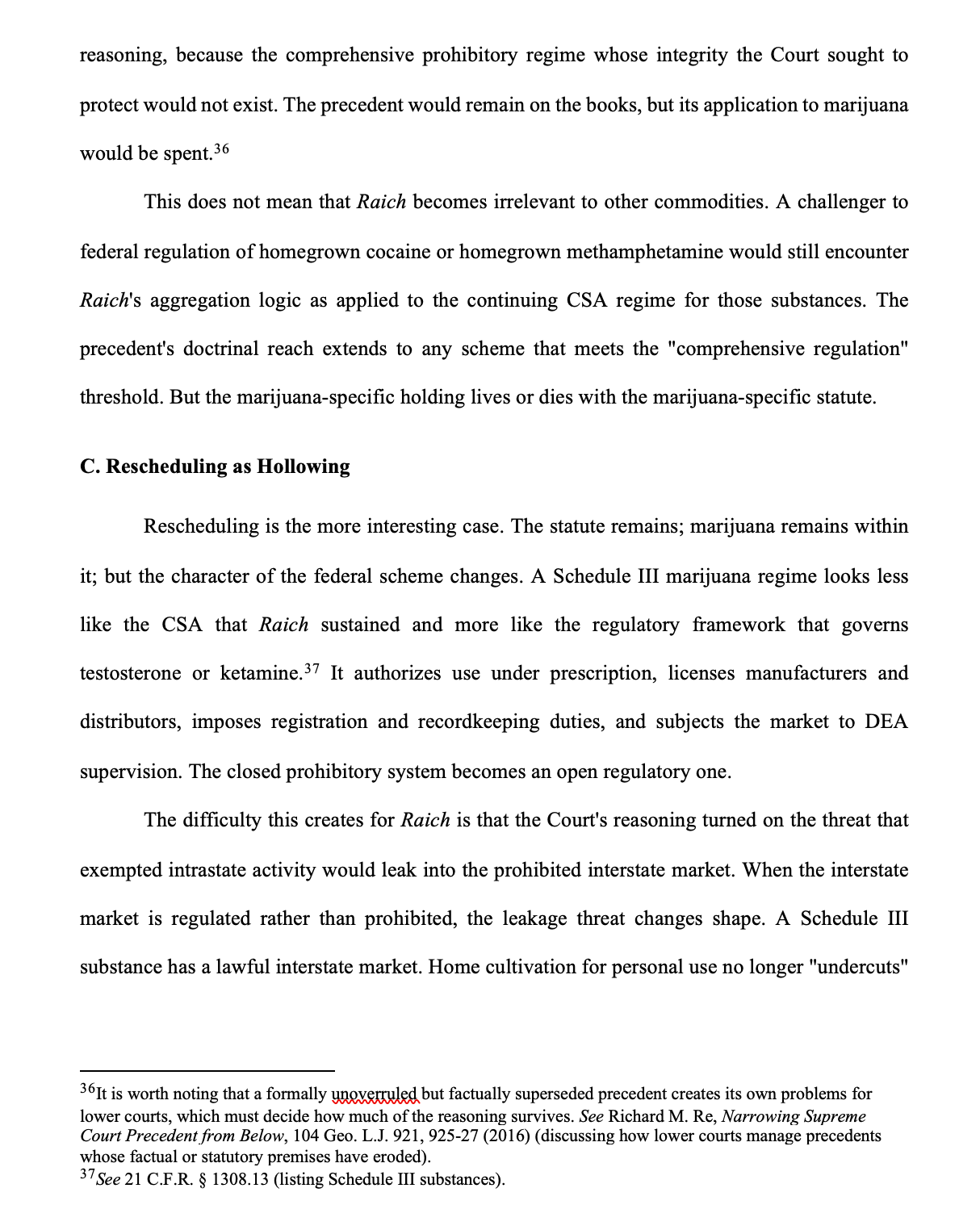
Here's a screenshot of the result. We make no claim that this is a great law review article. The draft is going to rise no higher than the mediocre thesis shown above that we quickly sketched to illustrate a proof of concept for Claude-NotebookLM workflows. Still, it heralds the possibilities of combining state of the art reasoning models (Claude Opus 4.6) with grounded legal research. You can see, for example the sort of legal reasoning, textual footnotes and citations that characterize law review articles.
How to connect Claude to NotebookLM
So how do we actually set up Claude so that it can drive NotebookLM? The first ingredient you need is notebooklm-mcp-cli, built by developer Jacob Ben-David. It connects Claude Cowork to NotebookLM via the Model Context Protocol, giving Cowork the ability to create notebooks, add sources in bulk, and trigger artifact generation — all programmatically, without you touching NotebookLM at all.
Installation takes about five minutes. Open the Terminal and run:
curl -LsSf https://astral.sh/uv/install.sh | shClose and reopen Terminal, then enter this:
uv tool install notebooklm-mcp-cli
nlm login
The login command opens your default browser and asks you to authenticate with your Google account. Once that completes, run:
which notebooklm-mcpCopy the full path it returns. Then open your Claude desktop configuration file, which you can do programmatically:
open -a TextEdit ~/Library/Application\ Support/Claude/claude_desktop_config.jsonYou should then be inside your text editor. This can be a little tricky because your configuration file may already have more contents inside. But look for a block that uses an "mcpServers" key and add the following block, replacing the path with the one you copied when you used the "which" command:
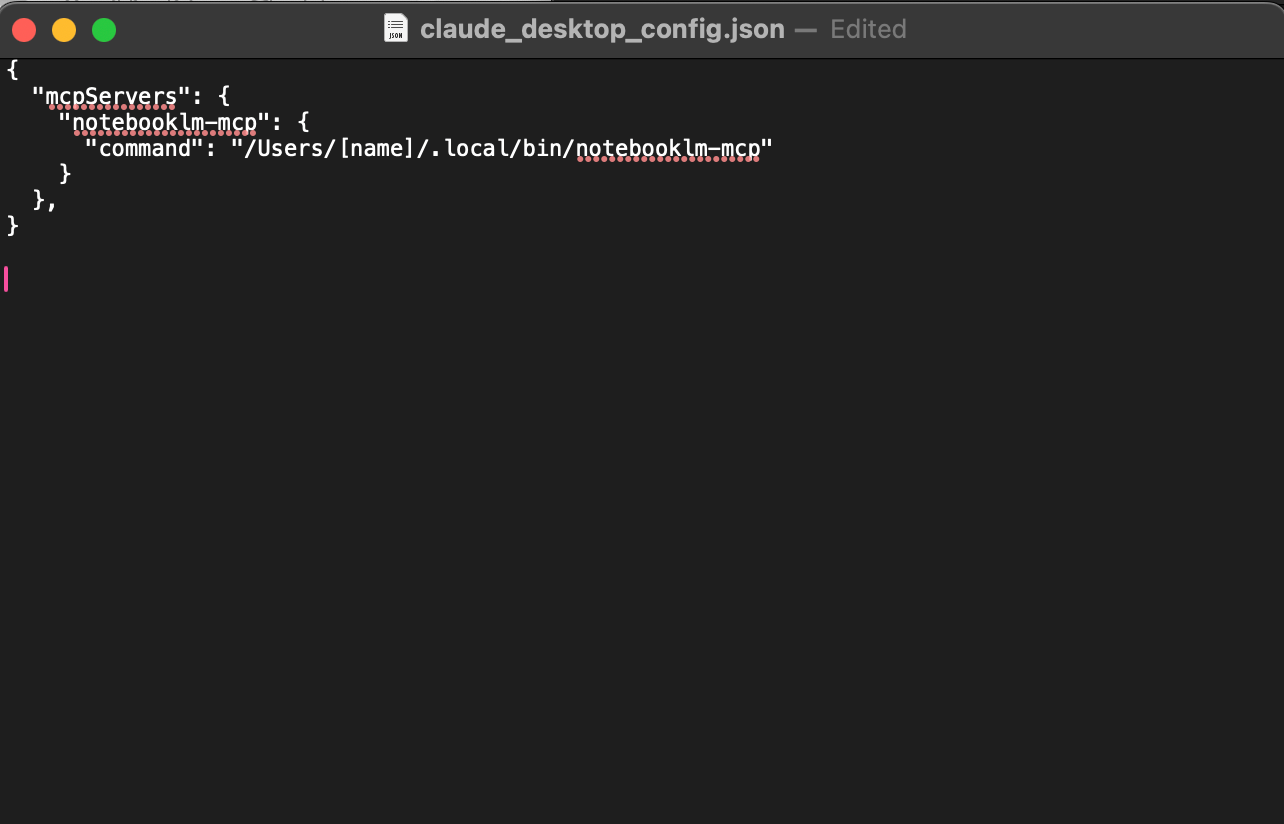
If you don't already have an mcpServers block inside the claude_desktop_config.json file, then just add the entire material:
{ "mcpServers": { "notebooklm": { "command": "/Users/yourname/.local/bin/notebooklm-mcp" } } }The hard work is over. Restart Claude Desktop and you should now have the ability to interact with NotebookLM.
One caution: The MCP authenticates via Google session cookies, which expire. If Cowork starts failing on NotebookLM calls after a few days, run nlm login in the terminal again. That is usually all it takes.
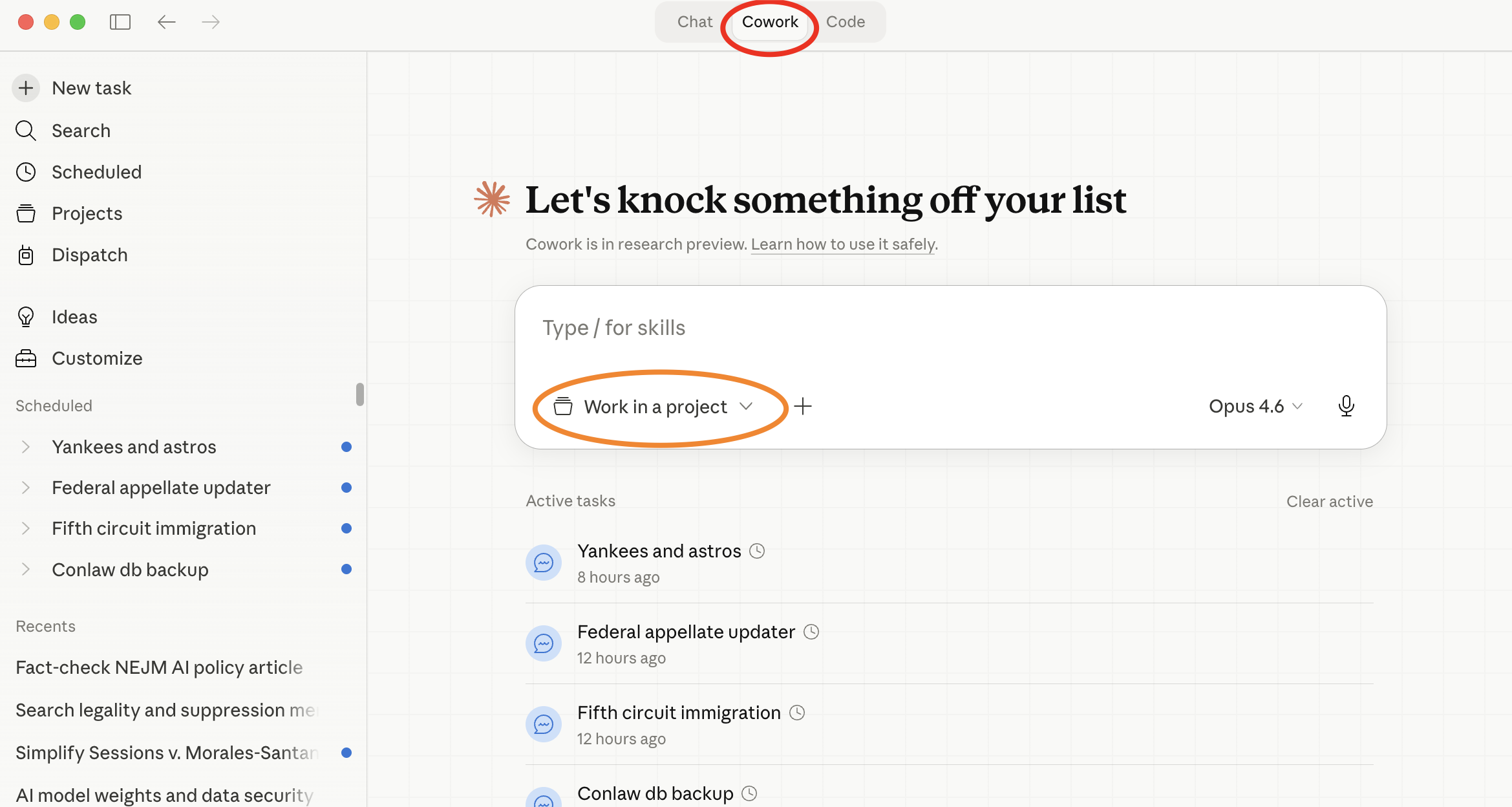
The best modality for most Claude-NotebookLM conversations will be using Claude Cowork. You do this by selecting the Cowork tab (circled in red) in the Claude Desktop app. And you will likely also want to be working in a Project associated with a folder (directory) on your local machine. Select the drop down arrow in the (circled in orange) "Work in a project" area and pick either an existing or new folder. (You can have multiple folders associated with a project).
Building a notebook
The opportunities now expand. You can for example, build a NotebookLM notebook without ever resorting to the NotebookLM interface.
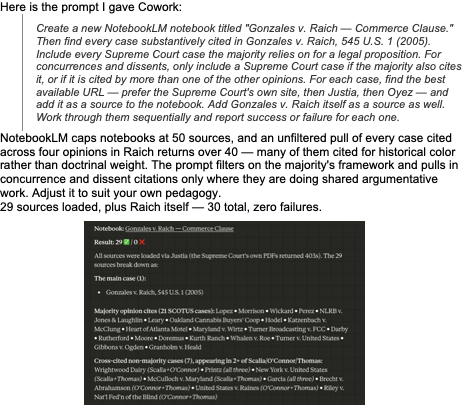
And, lest you say "what's really the point of that," consider a more complex prompt that says for each case listed in the attached file (which has a dozen cases) create a NotebookLM notebook titled in a way that evokes the case name and include a discussion of every major precedent cited therein. The advantage of using Claude is that you effectively have a computer interfacing with NotebookLM directly rather than having to hand type everything in a human-oriented user interface. A student, for example, could put in the table of contents from a course they were taking and get a mammoth book tracing the doctrinal history of each of the cases in the course. Won't your professor be impressed!
Generating study assets
Again, without ever touching NotebookLM, you can use Claude as an intermediary to generate a podcast, flashcards, a quiz, and a study guide.
In the NotebookLM notebook titled "Gonzales v. Raich — Commerce Clause," generate all four study assets: a podcast, flashcards, a quiz, and a study guide.
Cowork will work through all four and confirm completion for each. One practical note on the audio: the MCP call completes in seconds, but NotebookLM takes several minutes to process the podcast and surface it in the studio panel. If you open NotebookLM right after Cowork reports completion and the audio is not there, wait a few minutes. It will appear. This is NotebookLM's processing pipeline, not a failure on Cowork's end.
You can retrieve the materials produced and, as discussed above, push them to a website if you wish.
Download all studio artifacts from the NotebookLM notebook titled "Gonzales v. Raich — Commerce Clause." Then build a website that includes: the downloaded artifacts (audio overview, flashcards, quiz, and study guide); a summary of the case and holding; an explanation of the aggregate effects test as the doctrinal centerpiece; a summary of each opinion — Stevens majority, Scalia concurrence, O'Connor dissent, and Thomas dissent — covering the reasoning and key arguments; a timeline of Commerce Clause doctrine from Gibbons v. Ogden to Raich; a comparison of Lopez and Morrison's limits against Raich's expansion; and a list of all 30 source cases with one-sentence descriptions. Deploy the completed website as a new Netlify site using the Netlify connector. Return the live URL when done.
Note: One wrinkle: the podcast does not transfer automatically. NotebookLM's audio files are tied to your Google session and are not accessible as direct download URLs, so Cowork links out to the notebook rather than embedding the audio. This is solvable. Just ask Cowork to download the podcast directly, save it as an mp3, embed it in the site, and redeploy. It can do all of that — it just will not do it unprompted.
Again, however, using Claude Cowork to interface with just one NotebookLM notebook kind of misses the point. Instead, the big gains come when you use Claude Cowork as an agent. Instead of just giving Claude Cowork one case, you could give it all the cases mentioned in a particular segment of the course, say future interests in property or remedies in contract law. And then you could ask Cowork to produce and retrieve the four artifacts for each of perhaps the 20 cases that you include. Now you don't just have information, you have an organized compendium. Indeed, an ambitious student or professor might want to create a vast "multi-building" legal museum complex this way, with a central entrance (a home page) and web wings devoted to particular cases or doctrines.
Alternative Approach to Claude-NotebookLM Integration
The method we have recommended for connecting Claude to NotebookLM relies on use of the terminal, which may be scary for some users. There is an alternative, though it involves use of a Python library, which may likewise frighten some people. The technique is outlined in this video from Julian Golde. Essentially you go into Claude Cowork or Claude Code and tell it to install a Python library from Github: https://github.com/teng-lin/notebooklm-py. Once you've done so and run various authentication steps successfully, you can operate NotebookLM programatically in the same way we have already outlined. It is not clear whether this alternative approach to connecting the two AIs has any advantage or disadvantage.
Conclusion
This blog has argued that NotebookLM is the single best AI tool for legal education. That continues to be true even as other AI tools advance. It is extremely intuitive and remarkably powerful. But it does have limits. And what we might want in the future is for the functionality of NotebookLM to detach from its human interface. What we might want is for NotebookLM to essentially become a tool that both humans and computers can use. What we've shown in this blog entry is that we are getting closer to that goal. With Gemini it is extremely easy to perform many of the NotebookLM features and leverage Gemini's independent capabilities. With Claude, though it takes some setup, you can come close to "programming" NotebookLM already.